
In Class Activity - Visualizing Data with Matplotlib and Seaborn#
This lab focuses on creating plots using Matplotlib and Seaborn. Matplotlib is a general-purpose library for creating various kinds of visualizations in Python, including static, animated, and even interactive plots. Seaborn is a Python library that provides utilities for plotting and visualizing data and uses Matplotlib under the hood. For most purposes, seaborn is sufficient, but when we need more detailed control over our plots, we will turn to Matplotlib.
As usual, we will start by importing the packages we will be using for this lab.
%matplotlib inline

import pandas as pd
import numpy as np
import matplotlib.pyplot as plt
import seaborn as sns
Basic matplotlib functionality#
In cognitive science, like in other sciences, we care about the relationships between at least two variables. For example, we may ask questions like:
How does a person’s mood change as a function of time of day?
How does the temperature change as a function of sunlight?
How does the perceived color of an object change as a function of the color of its background? These are all questions about how one variable changes as another one changes.
Thus, one of the simplest kinds of visualizations involves plotting
the relationships between two variables. Let’s call one variable (the independent variable)
\(x\) and the other variable (the dependent variable) \(y\). Matplotlib provides
straightforward functionality for plotting the relationship between two variables
by using the plt.plot function, as shown in the next cell.
xs = [0.0, 0.53, 1.05, 1.58, 2.11, 2.63, 3.16, 3.68, 4.21, 4.74, 5.26, 5.79, 6.32, 6.84, 7.37, 7.89, 8.42, 8.95, 9.47, 10.0]
ys = [0.0, 0.5, 0.87, 1.0, 0.86, 0.49, -0.02, -0.52, -0.88, -1.0, -0.85, -0.47, 0.03, 0.53, 0.88, 1.0, 0.84, 0.46, -0.05, -0.54]
plt.plot(xs, ys)
[<matplotlib.lines.Line2D at 0x7ca77d260470>]
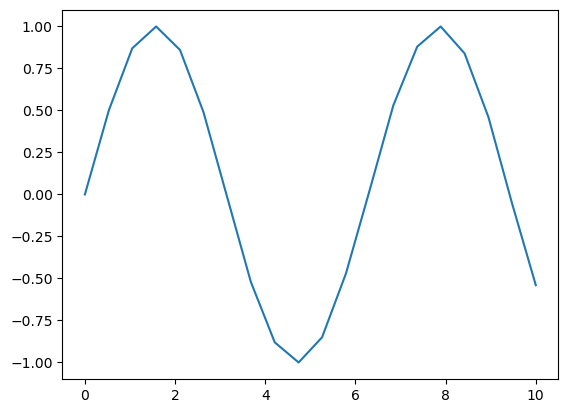
The simplest way to use the plt.plot function is to provide it with
two arguments corresponding to the x and y coordinates of different points.
By default, it creates a plot in which these points are connected by a blue line,
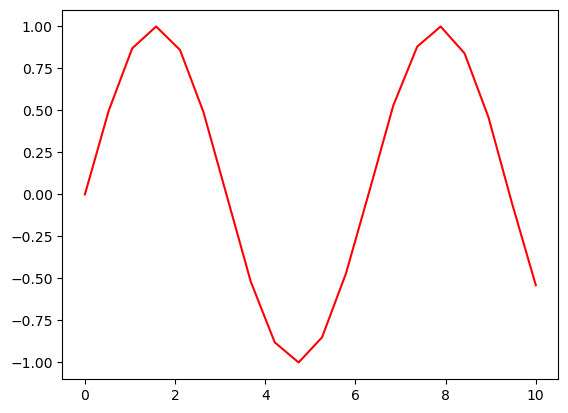
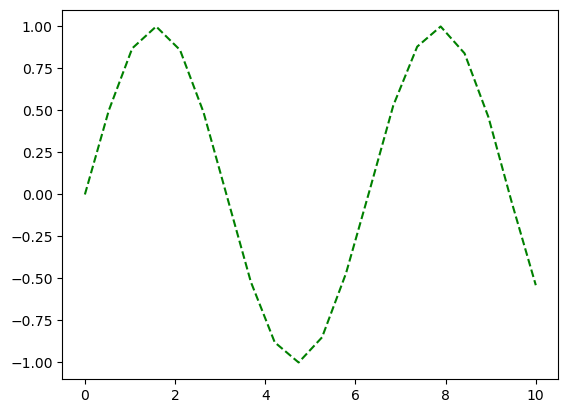
but we can change this formatting by passing in a format string that specifies the
color and style of the plot as a third argument.
plt.plot(xs, ys, 'r') # red line
[<matplotlib.lines.Line2D at 0x7d14ee9d5340>]
plt.plot(xs, ys, 'g--') # green dashed line
[<matplotlib.lines.Line2D at 0x7d14ee9ff4a0>]
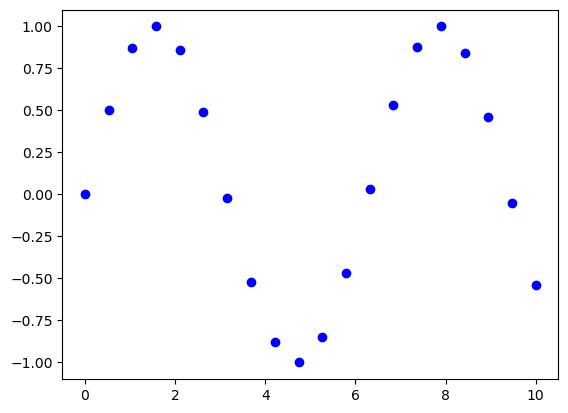
plt.plot(xs, ys, 'bo') # blue circles
[<matplotlib.lines.Line2D at 0x7d14ee8eccb0>]
Basic seaborn functionality#
Matplotlib is a powerful, flexible library that gives you fine-grained control over every detail of your plots. However, making plots look polished often requires writing a lot of extra code (choosing colors, adjusting labels, formatting styles). Seaborn is built on top of Matplotlib and is designed to make statistical data visualization easier and more attractive out of the box.
In the next few cells, we will look at how to plot lineplots and scatterplots using seaborn instead of matplotlib directly.
sns.lineplot(x=xs, y=ys)
<Axes: >
sns.scatterplot(x=xs, y=ys)
<Axes: >
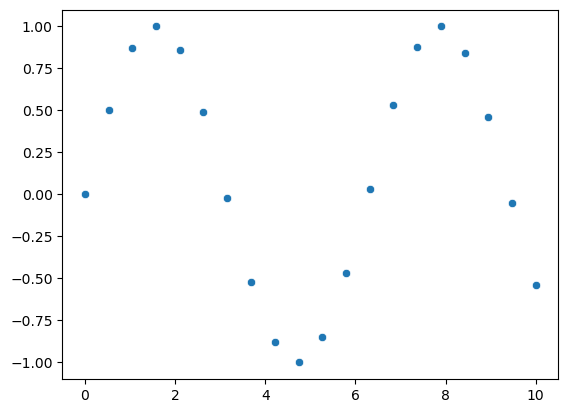
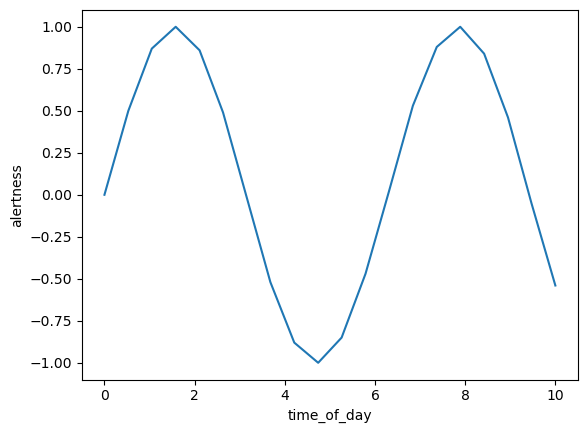
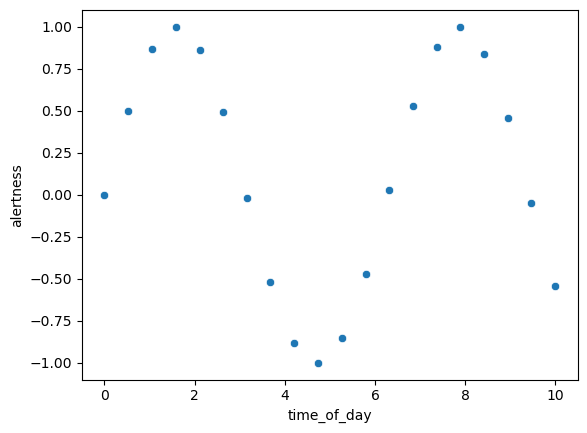
In the previous cells, we recreated the same plots using seaborn that we created with matplotlib, but the real power of seaborn comes from how it interacts with pandas dataframes. In the next cell, we are going to create a pandas dataframe from our x and y data, but label them as corresponding to, say, time of day and alertness. Then we are going to re-plot them.
df = pd.DataFrame({'time_of_day': xs, 'alertness': ys})
sns.lineplot(data=df, x='time_of_day', y='alertness')
<Axes: xlabel='time_of_day', ylabel='alertness'>
sns.scatterplot(data=df, x='time_of_day', y='alertness')
<Axes: xlabel='time_of_day', ylabel='alertness'>
Knowing that many users work with pandas dataframes, what are some other features or conveniences a library like seaborn could provide to make plotting even smoother? You can even take a look at the seaborn gallery for inspiration.
Grouping with Seaborn#
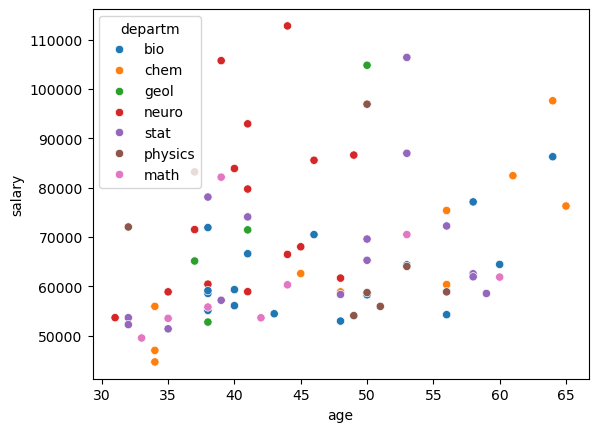
In the next few cells, we will explore how Seaborn makes it easy to create plots based on grouping data. Grouping means splitting your dataset into subcategories (for example, by gender, treatment group, time period, or experimental condition) and then plotting those groups together in a single visualization.
Seaborn handles grouping very naturally because it understands categorical variables in a pandas dataframe. Instead of manually filtering data and plotting one group at a time (as you would often need to do in raw Matplotlib), you can simply pass a column name to Seaborn’s hue, style, or size arguments, and it will automatically assign different colors, shapes, or line sizes based on groups.
# First, lets load the salary data into a pandas dataframe
df = pd.read_csv(
    "https://markkho.github.io/nyu_lab_in_cognition/data/salary.csv",
    sep=",",
    header="infer",
)
# We always want to quickly examine the data after loading it
df
| salary | gender | departm | years | age | publications | |
|---|---|---|---|---|---|---|
| 0 | 86285 | 0 | bio | 26.0 | 64.0 | 72 |
| 1 | 77125 | 0 | bio | 28.0 | 58.0 | 43 |
| 2 | 71922 | 0 | bio | 10.0 | 38.0 | 23 |
| 3 | 70499 | 0 | bio | 16.0 | 46.0 | 64 |
| 4 | 66624 | 0 | bio | 11.0 | 41.0 | 23 |
| ... | ... | ... | ... | ... | ... | ... |
| 72 | 53662 | 1 | neuro | 1.0 | 31.0 | 3 |
| 73 | 57185 | 1 | stat | 9.0 | 39.0 | 7 |
| 74 | 52254 | 1 | stat | 2.0 | 32.0 | 9 |
| 75 | 61885 | 1 | math | 23.0 | 60.0 | 9 |
| 76 | 49542 | 1 | math | 3.0 | 33.0 | 5 |
77 rows × 6 columns
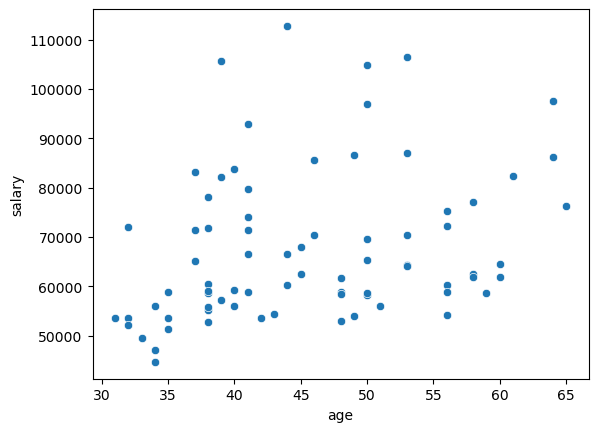
# To start, let's create a simple scatterplot of age vs. salary
sns.scatterplot(data=df, x="age", y="salary")
<Axes: xlabel='age', ylabel='salary'>
# Now, let's add a grouping variable to see how age and salary vary by department
sns.scatterplot(data=df, x="age", y="salary", hue='departm')
<Axes: xlabel='age', ylabel='salary'>
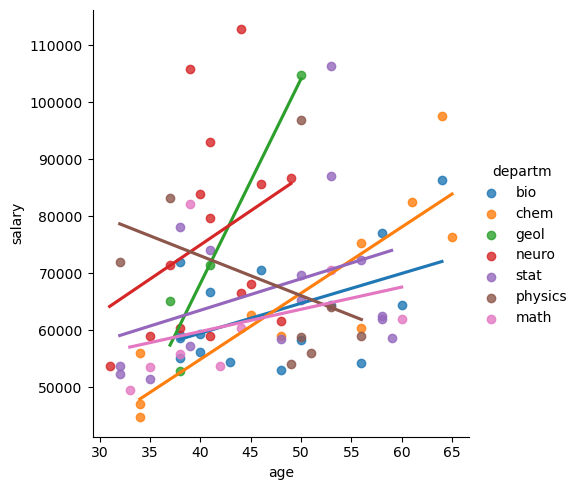
# Here, we use lmplot to add regression lines for each department
# The ci=None argument removes the confidence interval shading around each line
sns.lmplot(data=df, x="age", y="salary", hue='departm', ci=None)
<seaborn.axisgrid.FacetGrid at 0x7d1540218620>
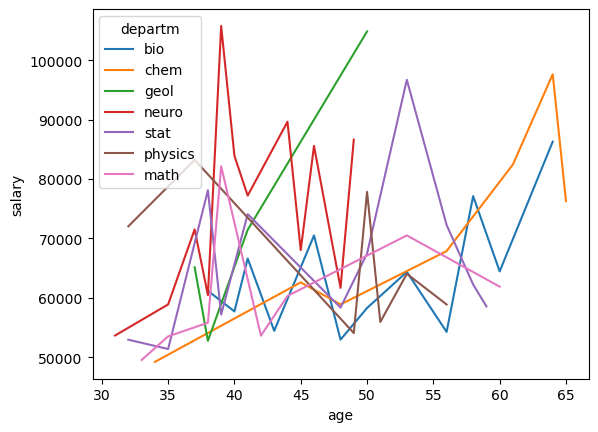
Seaborn has additional functions for
plotting data besides scatterplot, for instance, we earlier used sns.lineplot.
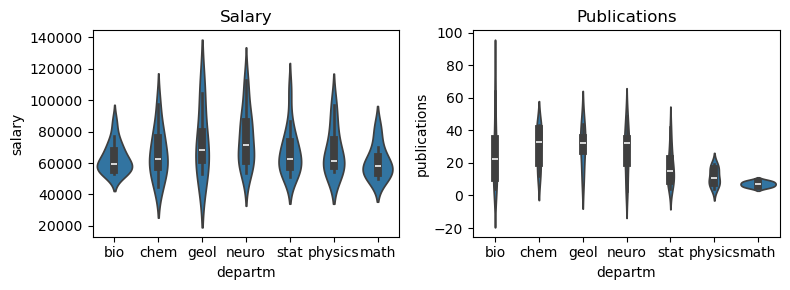
What happens if you try to plot the age/salary data with sns.lineplot?
Try plotting the data using
sns.boxplot()
and sns.violinplot(),
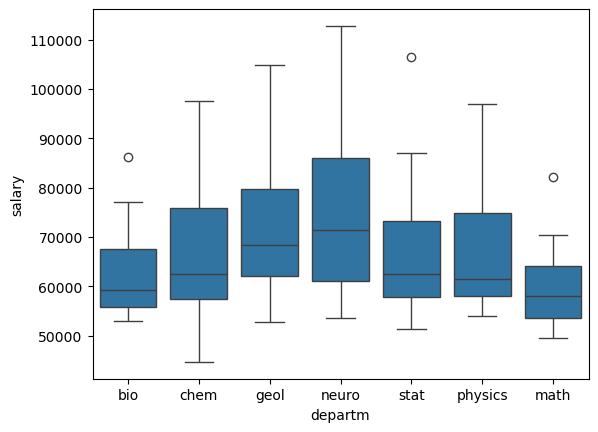
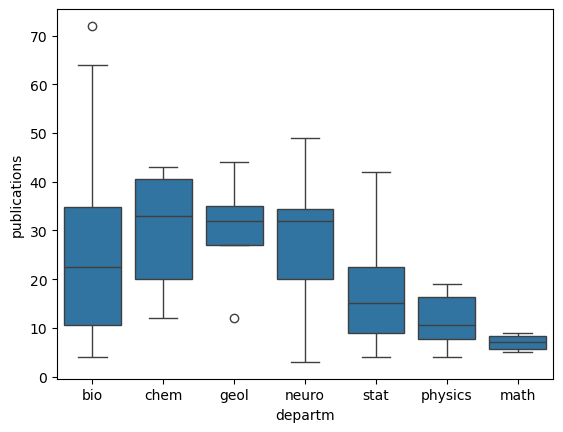
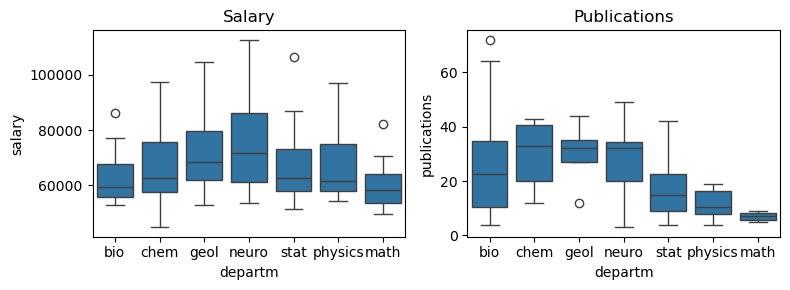
where the x axis is department and y axis is salary or publications.
What do you find? Which of these ways of visualizing the data is best?
sns.lineplot(data=df, x="age", y="salary", hue='departm', errorbar=None)
<Axes: xlabel='age', ylabel='salary'>
sns.boxplot(data=df, x="departm", y="salary")
<Axes: xlabel='departm', ylabel='salary'>
sns.boxplot(data=df, x="departm", y="publications")
<Axes: xlabel='departm', ylabel='publications'>
fig, axes = plt.subplots(1, 2, figsize=(8, 3))
sns.boxplot(data=df, x="departm", y="salary", ax=axes[0])
axes[0].set_title("Salary")
sns.boxplot(data=df, x="departm", y="publications", ax=axes[1])
axes[1].set_title("Publications")
plt.tight_layout() #
plt.show()
fig, axes = plt.subplots(1, 2, figsize=(8, 3))
sns.violinplot(data=df, x="departm", y="salary", ax=axes[0])
axes[0].set_title("Salary")
sns.violinplot(data=df, x="departm", y="publications", ax=axes[1])
axes[1].set_title("Publications")
plt.tight_layout() #
plt.show()